Google Search Console Integration
Written By Richard
Last updated 7 months ago
This guide shows you how to fetch data from Google Search Console directly into Google Sheets using Sheetfetch.
1. Create a Sheetfetch Account
Go to Sheetfetch and sign up for a new account. After logging in, you’ll be taken to the dashboard where you can start creating your data connections.
2. Connect Google Sheets
To store your data, you need to connect your Google account:
Go to Integrations or Connect Google Sheets
Click Connect
Choose your Google account and grant access
Once connected, Sheetfetch will be able to write data to your Google Sheets.
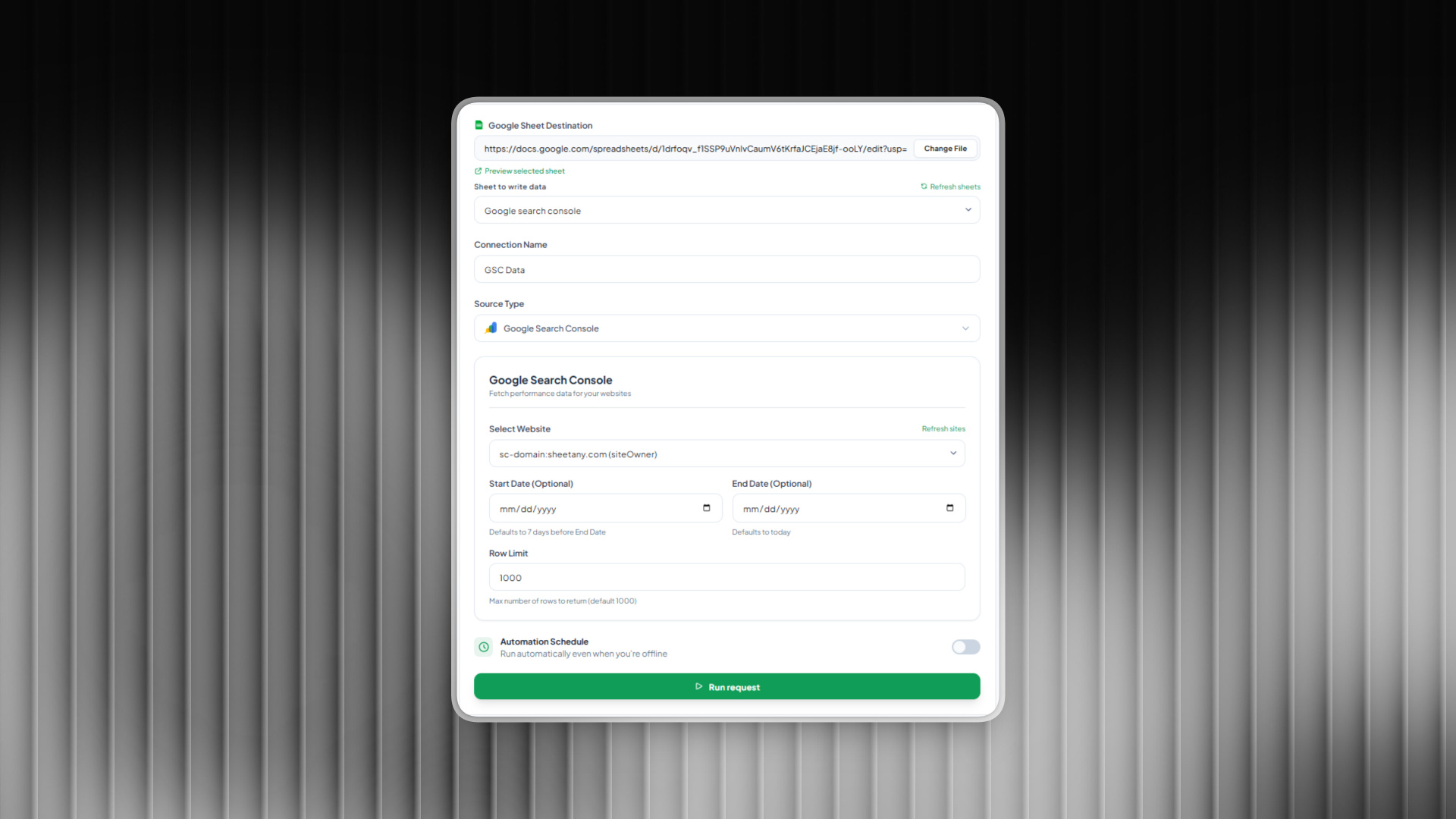
3. Create a New Connection
From the dashboard:
Click Create Connection
Enter a name for your connection
Basic configuration:
Destination Sheet: Select your Google Sheets file
Sheet Name: Choose the specific worksheet (tab) where data will be written
4. Select Source Type
In the data source configuration:
Set Source Type to Google Search Console
5. Connect Google Search Console
Sign in and grant access to your Google Search Console account
Select the website (property) you want to fetch data from
Sheetfetch will automatically list all properties you have access to.
6. Configure Data Settings
You can customize:
Date range
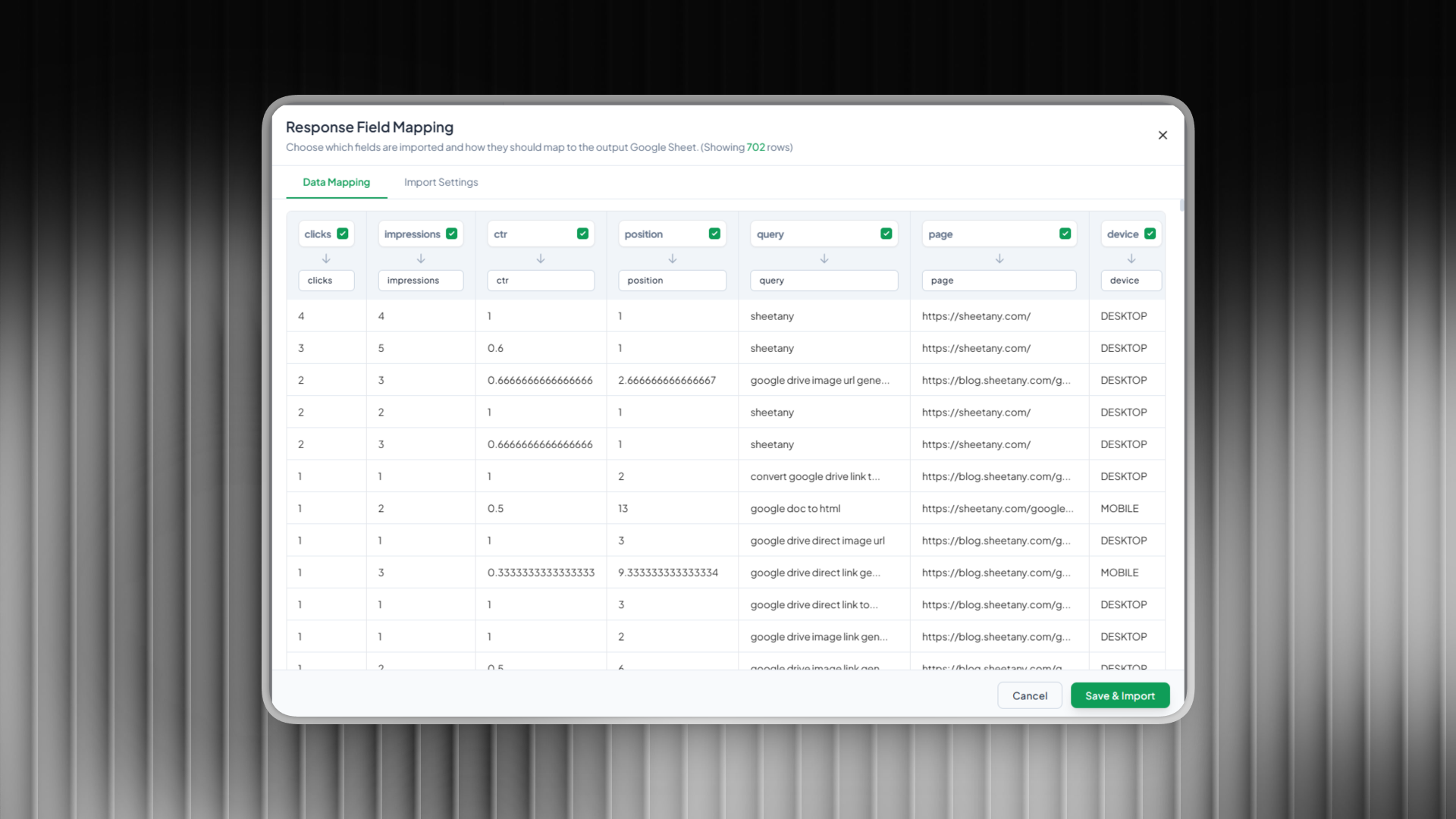
Metrics (clicks, impressions, CTR, position, etc.)
Dimensions (query, page, country, device, etc.)
7. Save and Run the Connection
Click Save
Click Run to fetch data immediately
Your data will be written directly into the selected Google Sheets.
8. (Optional) Schedule Automatic Sync
You can automate data updates by setting a schedule:
Interval: minutes, hours, days
Frequency: how often it runs
Start time: when it begins
Result
Once set up, your Google Search Console data will be automatically synced to Google Sheets, making it easy to analyze, build dashboards, or even use as a data source for your API.
Was this helpful?
Still need help? Ask the team