Write Modes
Written By Richard
Last updated 7 months ago
When creating a new connection in Sheetfetch, you will see the Write Mode section with 3 options. Each mode controls how data is written to your Google Sheets.
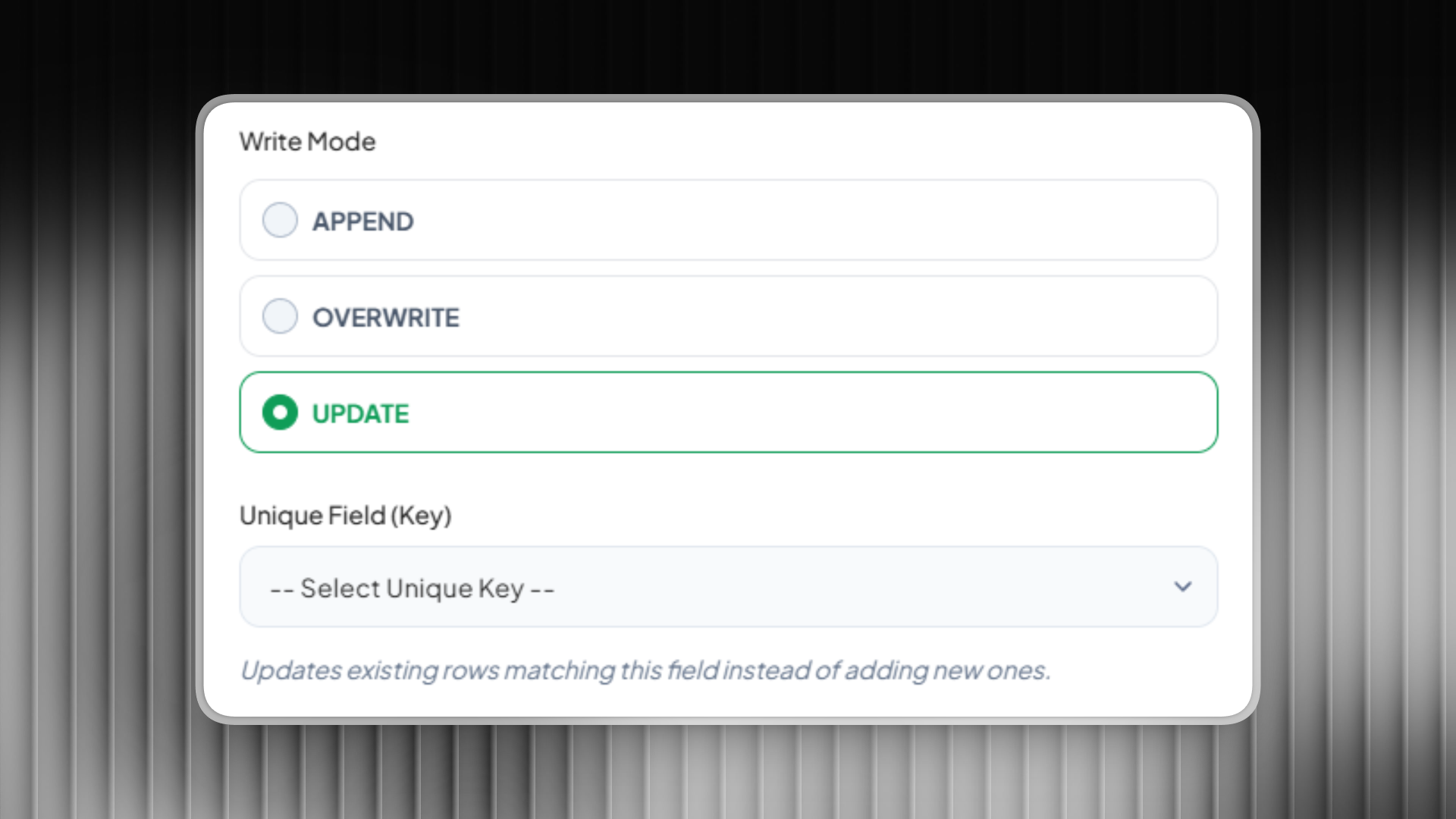
1. Append
How it works:
New data is always added to the bottom of the sheet
Existing data remains unchanged
When to use:
When you want to keep historical data
Logs, tracking, or time-based records
Example:
You fetch order data daily:
Day 1: 100 rows → written to the sheet
Day 2: 120 rows → 120 new rows are appended
Total: 220 rows in the sheet
2. Overwrite
How it works:
Each run will clear all existing data and replace it with new data
When to use:
When you only need the latest snapshot
Dashboards or reports
Example:
You fetch a product list:
Run 1: 50 products → written to the sheet
Run 2: API returns 45 products → sheet now contains only 45 rows, old data is removed
3. Update
How it works:
Instead of blindly adding data, Sheetfetch will:
Compare incoming data with existing rows using a Unique Field (Key)
If a match is found → update the existing row
If no match → add a new row
Required setup:
You must select a Unique Field (Key)
(e.g.id,email,order_id)
When to use:
Syncing data
Avoiding duplicates
Keeping records up to date
Example:
Current sheet:
New data from API:
Result after run (key = id):
Summary
Quick tip:
Logs or tracking → Append
Frequently changing data → Update
Only need the latest version → Overwrite
Was this helpful?
Still need help? Ask the team